Sunday, 23 April 2017

Hi Guys,

Today, I received a strange error while using outlook. The error has the following message:


That is a very common issue when you try to open apps which are synced with Outlook (in my case Skype). So, as you can see, this error is caused because your Outlook crashed but the Skype (or Lync) still has a reference to that .ost (the outlook data file has an ost extension) file.

So let’s see how this can be solved.

There are 2 methods to solve the issue:

Process 1:

#1: open run, press Windows + R button

Enter the path \Program Files (x86)\Microsoft Office\Office14\


Or you may have to use this path:


#2: Find Scanpst.exe and run it


Process 2:

#1: Run ProcessExplorer and choose "Find Handle or DLL" from the Find menu.

#2: Search for '.ost'. This will display all open handles to your Outlook data file.

#3: Choose to close all handles to your .ost file

#4: Start Outlook again


& that’s it. You can use any of the two methods to resolve this error.

Now happily enjoy your outlook and Skype J

Rest Is Next!

Thanks,
Vipul

Tuesday, 27 December 2016

All About f.lux

Hi Friends,

Seems like this is going to be my last blog in 2016! So, I decided why not discuss a tool which is good for you & your eyes.

So, let's discuss f.lux tool. I thank my friend Tarun for this!

To find if you have f.lux installed on your Win machine, go to Cortana as type Programs and Features. 


Otherwise, go to Start -> Settings ->  System-> Apps & features


and then, on the right panel, you can see:


So, let's get started by understanding what it means & what it does:

As per Wiki, f.lux is a proprietary computer program that adjusts a display's color temperature according to location and time of day. The program was designed to reduce eye strain during night-time use and reduce disruption of sleep patterns.

That actually very well summarizes it. I found another useful link which provides all the general queries related to f.lux as a FAQ. You can read it by clicking here. [Or by copy-pasting the link on your browser: http://tinyurl.com/mmtsw3a]

So, now that you have all the necessary information, have a great sleep!

Good Night!
(For my EST pals)

Friday, 21 October 2016

Most Common Problem in Outlook & Skype: Resolved

Hi Guys,
Today, I received a strange error while using outlook. The error has the following message:


That is a very common issue when you try to open apps which are synched with Outlook (in my case Skype). So, as you can see, this error is caused because your Outlook crashed but the Skype (or Lync) still has a reference to that .ost (the outlook data file has an ost extension) file.
So let’s see how this can be solved.
There are 2 methods to solve the issue:
Process 1:
#1: open run, press Windows + R button
Enter the path \Program Files (x86)\Microsoft Office\Office14\


Or you may have to use this path:


#2: Find Scanpst.exe and run it


Process 2:

#1: Run Process Explorer and choose "Find Handle or DLL" from the Find menu.
#2: Search for '.ost'. This will display all open handles to your Outlook data file.
#3: Choose to close all handles to your .ost file
#4: Start Outlook again

& that’s it. You can use any of the two methods to resolve this error.

Now happily enjoy your outlook and Skype.

Rest Is Next!
Thanks,

Vipul

Thursday, 29 September 2016

Clean Your Google Chrome Browser: 5 Simple Steps

Hi Friends!

In this post, I am going to explain how can you get rid of all the crashes, unusual startup pages, toolbars, unexpected ads or anything else which diminishes your browsing experience in Chrome.

So let's get started.

#1: Navigate to the URL: https://www.google.com/chrome/cleanup-tool/
You will see this clean & sleek page:


#2: Press on the Download now button

#3: Once downloaded, run the utility

#4: Once installed, it will then start scanning for programs causing issues


#5: And then finally it will show the results!


& that's All!

Now you can have an amazing experience using Chrome!

Don't thank me guys, thanks Google. :P

Rest Is Next!
Cheers.

Monday, 9 May 2016

Java Not Working in Web Browsers:

Hello friends!

Recently, Keepvid.com (website which allows you to download videos from YouTube) added a new feature of downloading mp3 of the pasted URL.

Now, if you are using Keepvid, you would know that downloading in various formats and sizes is way too easy here. But this  new feature of download as mp3 in Chrome does not work.

In this blog I am going to highlight one of the most common issues which pops up when you try to download items from internet- Java not enabled in your web browser!

Also, it's quite possible that even after installing Java, Applets do not run.


                             [This screenshot of error was taken while using Google Chrome]

So let's get started,

The cause to this problem is : Java is not enabled in the web browser. If Java is already installed but applets do not work, you need to enable Java through your web browser.

The most generic solution to this problem is If you recently installed Java, you may need to restart your browser (close all browser windows and re-open), in order for the browser to recognize the installation. In addition, make sure Java content in the browser is enabled through the Java Control Panel

I will give browser specific solutions.

#1: Internet Explorer
* Click Tools and then Internet Options
* Select the Security tab, and select the Custom Level button
* Scroll down to Scripting of Java applets
* Make sure the Enable radio button is checked
* Click OK to save your preference

#2: Firefox
* Open the Firefox browser or restart it, if it is already running
* From the Firefox menu, select Tools, then click the Add-ons option
* In the Add-ons Manager window, select Plugins
* Click Java (TM) Platform plugin (Windows) or Java Applet Plug-in (Mac OS X) to select it
* Check that the option selected is Ask to Activate or Always Activate or on older Firefox versions, click on the Enable button (if the button says Disable, Java is already enabled)

#3: Safari
* Click on Safari and select Preferences
* Choose the Security option
* Select Allow Plug-ins, then click on Manage Website Settings
* Click on the Java item, select an option (Ask, Allow or Allow Always) from the pulldown list when visiting other websites
* Click Done, then close the Safari Preferences window

#4: Google Chrome
Chrome no longer supports NPAPI (technology required for Java applets)

The Java plug-in for web browsers relies on the cross platform plugin architecture NPAPI, which has been supported by all major web browsers for over a decade. Google's Chrome version 45 (scheduled for release in September 2015) drops support for NPAPI, impacting plugins for Silverlight, Java, Facebook Video and other similar NPAPI based plugins.

Java applications are offered through web browsers as either a web start application (which do not interact with the browser once they are launched) or as a Java applet (which might interact with the browser). This change does not affect Web Start applications, it only impacts applets.

If you have problems accessing Java applications using Chrome, Oracle recommends using Internet Explorer (Windows) or Safari (Mac OS X) instead.

Hope this article allows you to seamlessly download videos now.

Rest is Next.

Cheers,
Vipul

Thursday, 14 April 2016

Export or backup Outlook .pst file: All MS Office Versions

Hallo Vrienden!

This is your goed oud vriend Vipul, back again with a simple yet powerful trick. I thank my friend Jaspreet for this article.

Today, we will learn how to export your MS Outlook file to an USB, your laptop's hard disk or any other secondary storage.

Why you should do this? 
You are continuously on the go, switching between jobs etc. hence, you would always want a backup of all your past history so that you don't have to follow up with your ex-cos teammates for certain mail communication.

So let's get started!

Let's see, I just found a very informative step-by-step process of how this could be done. So, here I would give reference to that article and would request your queries in the comment section below.

Link to the article, please click here [or copy the address in your browser: https://support.office.com/en-us/article/Export-or-backup-email-contacts-and-calendar-to-an-Outlook-pst-file-14252b52-3075-4e9b-be4e-ff9ef1068f91]


Rest is Next!

Proost...
Vipul 

Optimize Laptop Performance: Part 1 Optimize Drives

Hola Amigos,

In this blogpost, I am going to share the easiest method to improve your laptop's disk performance.

Wanna make a guess, well some hints: hard-disk, easiest, performance improvement!

Yes, you got it right, I am talking about disk optimization and defragmentation. (for those who didn't get it correct, it's cool! You are reading this because you wish to learn, right?)

But, before we learn how to do it, let's understand in simple terms what it means:

Fragmentation occurs when your system performs common memory function like creating, modifying or deleting files. So, what happens is that at some point of time, the OS (Operating System) needs to store these files in non-contiguous clusters and this results in improper utilization of disk clusters resulting in fragmentation. There are 2 types of fragmentation:

#1: Internal Fragmentation: Suppose each block of memory is 1024 Kb. Now if the OS allocates a block of this size to a process which requires 900 Kb, then the rest of 124 Kb (=1024-900 Kb) becomes unavailable for usage for other processes. This is internal fragmentation.

As you can see, the white space in the above illustration represents Internal Fragmentation

#2 External Fragmentation: This will be more clear from the figure below.


Now, suppose there is a process which has requested OS for 5 memory block. As you can see the above cluster contains 5 free memory blocks (in white), but the OS will not allocate them because these spaces are not contiguous! This is External Fragmentation.

Now is the time to resolve both these issues using the defragment option. So let's get started.

Step #1: Choose the drive which you want to optimize and then right click -> Properties


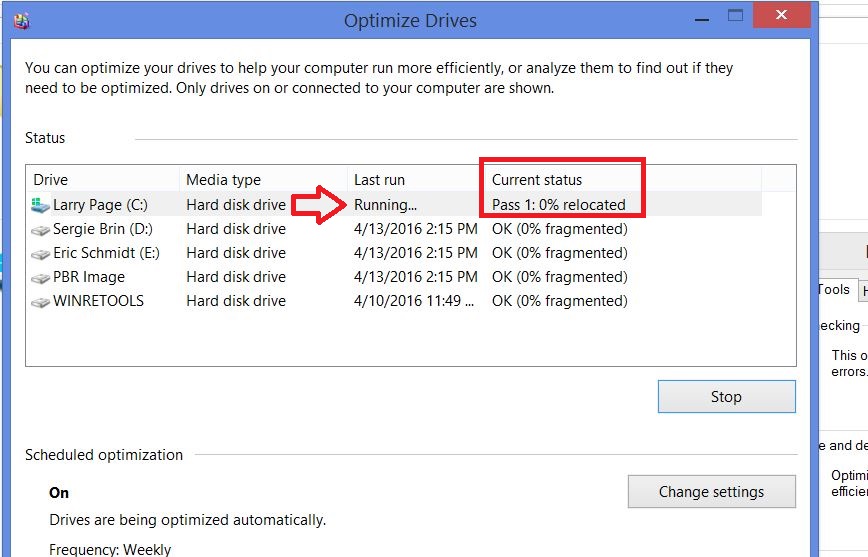
Step #2: Navigate to Tools tab and then click on Optimize as shown below


Step #3: Select the drive to defragment, click on either Analyze or Optimize (depending upon what you want to do)


There is actually no Step #4. If you clicked upon Optimize, then you will see the progress as shown below:

That's it! Now do it for all the drives which are fragmented and you surely going to have an improved disk-related operations.

Have any other ideas. Leave it in the comments section below.

Rest is Next!
Vipul

Friday, 5 February 2016

3 Things to Resolve Fan Noise

Hola Amigas!

Let me take a break from my previous article and write 3 things which are useful in resolving the huge decibels of noise your laptop fan makes.

This blog is in response to a query from my blog reader Thejaswi

So, let's get started:

The problem statement goes like this. 
Whenever, she starts using some heavy application like Photoshop. The problem is that speeding up of your laptop. in general indicates, that your laptop is heating! And the relationship between fan speed, fan noise and laptop heating is direct! So, it certainly is not a very good thing.

Now, what can it lead to?
Overheating is one of the leading causes of hard drive failures. Some other issues involves slowness, random reboots etc.

So, let's see how can we solve this problem:

Solution #1: Buy a laptop cooler
The easiest of all. They costs you a little bit but prolongs the life of your laptop a lot. A simple Google search can show you the various options available on the various e-com sites.

So, your laptop sits on top of the cooling pad (which gets power from the USB port). Many of the cooling pads comes with a built-in USB hubs so that you don't run out of USB ports. I agree that they may not be that handy if your work involves frequent travel and for that, I request you to see solution #2.

Solution #2: Kill unnecessary processes
As we have understood that a heavy load on the CPU causes the fan to go bizarre. So, killing of unwanted, non-relevant processes is a natural logical extension to reduce the problem.

One of the best way to do this is to kill the process during the start-up, so that they don't load. You can do this by following the steps mentioned below:

In Win 7:
Press Win + R (shortcut for Run) and type msconfig


It will direct you to this screen: Navigate from General tab to Startup tab


Here, you will see list of all processes. Disable the ones which are unnecessary and then restart your system. 

In Win 8.1
You can directly do it in Task Manager. 

To open Task Manager, press Ctrl+Shift+Esc at single go

and then disable the process it as shown below:
{Some programs which you can disable are: Skype, DropboxOEM, Java Update Scheduler, Sticky Notes}


You can also use specialized software like Soluto. This app has enormous features like Diagnostics, Alarm, Erase, Backup, Anti-virus etc.

Solution #3: Remove the dust
Using your laptop in hostile conditions and on-the-go is what you initially purchased it for, right? But, believe me, as dust is a big problem for you, it is for your laptop as well!

A word of caution: Do not do this if you are not sure what you are doing!

So, having read the disclaimer, let me tell you how you can do that:
Turn your laptop off, remove the battery and find the screws that secure the case. Once you’ve exposed the filthy mess that is your laptop’s inner workings, set about cleaning it with the air

There is video tutorial for this, you can watch it here

Dell has got a wonderful KB article explaining step-by-step how can you do that. To this article, click here
[URL: http://www.dell.com/support/article/us/en/19/530984/en]

With this, I think that using your laptops will be pleasant experience to your ears!

Got queries, post them in the comments sections below.

El descanso es proximo!

Au Revoir :)

Sunday, 13 December 2015

Laptop Display Issues Part-I: Understanding Display Assembly Diagram

Hola Amigas!

I can understand your anger over my not coming up with any article for nearly 6 months now! 

To compensate, in the next two blogs, I am gonna try to help you to understand to troubleshoot one of the most common issues in laptops these days i.e. of Display. [I thank Samiksha for the motivation for this blog!]

But before we deep dive into troubleshooting steps, lets try to understand the architecture of display in a common laptop.

This structure will also help you in bargaining with local laptop repairs mechanics as you can specifically ask them to tell you the issues and correspondingly you can weigh in your monitory options.

So lets rock and roll:

The basic structure of a laptop display is something like this:


As you can see, there are just 4 basic parts. Let's try to understand them in layman's terms:

#1: Video Cable is responsible for: 
      a. Carrying display signals from Motherboard (or video card) at point 1 to LCD screen at point 2
      b. In most cases, it also supplying the necessary voltage to the FL Inverter board at point 3

Video cable typically costs somewhere about INR 500/- in e-com sites

#2: FL Inverter board is responsible for:
      a. Converting low DC received at point 3 to high voltage AC at point 4.
          i. This is then fed to the CCFL (backlight bulb)

If an issue exists at this component, when you turn on the laptop, the LCD screen (backlight bulb) will not light up. Nevertheless, you will be able to see a very dim image on the laptop screen.

This component is gonna cost you around INR 1000-1500 in e-com sites

#3: CCFL (backlight bulb): 
When the backlight bulb lights up, you can see an images on the LCD screen. In most cases the backlight bulb is a part of the LCD screen and if it’s bad, the entire screen has to be replaced. By the way, some specialized repair shops can replace the backlight bulb itself.

Buying this is an expensive affair and you may have to shell out more than INR 5k+

#4:Lid close switch:
The lid close switch is a small button that locates close to the display hinges. On some newer models there is no button, because the switch is magnetic. You can set up your laptop to go to a hibernation mode or to a standby mode when the LCD is closed via power management software. These modes are triggered when the display is closed and the lid close switch is pressed down. If the LCD screen on your laptop will not light up when you open the display assembly, check the lid close switch is stuck inside (it might happen because the switch is dirty). 


So, I tried to explain in simple terms about the display set-up of a common laptop. Hope this helps to bargain for prices next time you visit the repair shop.

Got queries, post them in the comments sections below.

El descanso es proximo!

Au Revoir :)


Saturday, 13 June 2015

Find Out Publishing Date Of Any Article

Hi Friends!

Hope you all are doing good. It took some time for me to write here as my schedule had become quite hectic in the last few months.

During my previous endeavours, I had to do a lot of secondary research. But you all know that, if you have to read 60+ articles, easiest way to filter the results while Googling!

But many a times, Google does not show the published date of the articles and because even the article does not have any date mentioned on it, you are uncertain about the age of the article.

So, I share two methods of achieving this:

Method 1:

I thank my friend Shashank for helping me in this. So here it goes:

#1: Suppose, I am searching for pdf on literacy rates, so my original search will be something like:
                                                          informat: pdf literacy rate

[and the address bar will be like this: https://www.google.co.in/search?q=informat%3A+pdf+literacy+rate&oq=informat%3A+pdf+literacy+rate&aqs=chrome..69i57j69i58.18910j0j7&sourceid=chrome&es_sm=93&ie=UTF-8]


Now the trick lies in passing one more parameter in the query string [what ever is after ? in URL is known as query string, its a key-value pair and one of the easiest way to pass values between pages]

So we will add &as_qdr=y15 to the query string and now the query string will look like
[https://www.google.co.in/search?q=informat%3A+pdf+literacy+rate&oq=informat%3A+pdf+literacy+rate&aqs=chrome..69i57j69i58.18910j0j7&sourceid=chrome&es_sm=93&ie=UTF-8&as_qdr=y15]

Method 2:

Open Internet Archive Wayback Machine, [URL: http://archive.org/web/]

Paste the URL in the box and Voila you can track the history of the article since the beginning of time!


Happy Searching!

Regards,
Vipul

If you know any other method, please share it with me on the comments section.